

.png)

PrimeTrust Digital for Business
PrimeTrust Digital: Now Open for Business.
The app you love, now working harder for you.
You told us you needed a faster way to run your business, and we delivered! PrimeTrust now offers all-new digital banking built specifically for business owners. You can now manage your payroll, connect directly to QuickBooks, and move money instantly—all from your phone or computer. We’ve made it easier than ever to handle the "business side" of things so you can get back to doing what you love.
Click to meet with a team member & learn more
Introducing Positive Pay
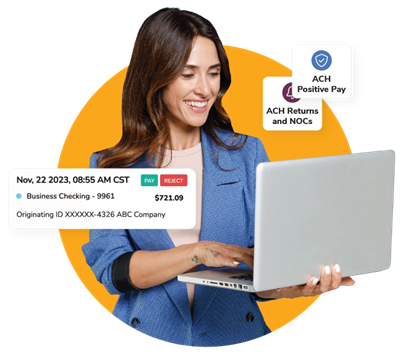
Fraudsters can strike at any moment, but with Positive Pay, your business has a powerful defense. This essential fraud prevention tool allows you to proactively monitor transactions against your check issuance files and customized ACH criteria.
When a check is presented for payment or an ACH debit is requested, our system automatically compares the transaction details with your pre-approved files.
-
Track Payments Instantly
-
Secure Your Transactions
-
Simplify Business Banking
-
Verify Every Dollar
-
Recommend Best Practices to Protect Your Business
Types of Positive Pay
(New for Business Members)
Check Positive Pay
Recommended for all business and commercial members
Operates by verifying each check presented for payment against a list of checks issued by your company (a.k.a an issuance file). This issuance list or file includes essential details such as check number, account number, dollar amount, and payee and is also available for teller line validation of on-us checks presented to be cashed.
Payee Positive Pay
Recommended for business and commercial members that want an added level of security on their account
Inspects the check image presented and compare the payee name provided on your issuance file with the payee on the check image. Any discrepancy flags the check as potentially fraudulent, prompting alerts to be sent for further action. This information is also available for teller line validation of on-us checks presented to be cashed. This process significantly diminishes the risk of check fraud and losses that can almost never be collected.
Reverse Positive Pay
Recommended for business and commercial members that issue a limited number of checks but are still looking for a tool to mitigate fraud
Presents a report of checks that are clearing the account to verify the check image against your records.
ACH Positive Pay
Recommended for all business and commercial members receiving ACH debit and credit transactions and are interested in or require advanced fraud mitigation.
Allows you to set parameters to control which ACH debits and credits post to your accounts. Similar to its check counterpart, ACH Positive Pay flags transactions not meeting the established criteria, enabling you to review and decide on the legitimacy of these transactions.
Introducing Tap2Local!
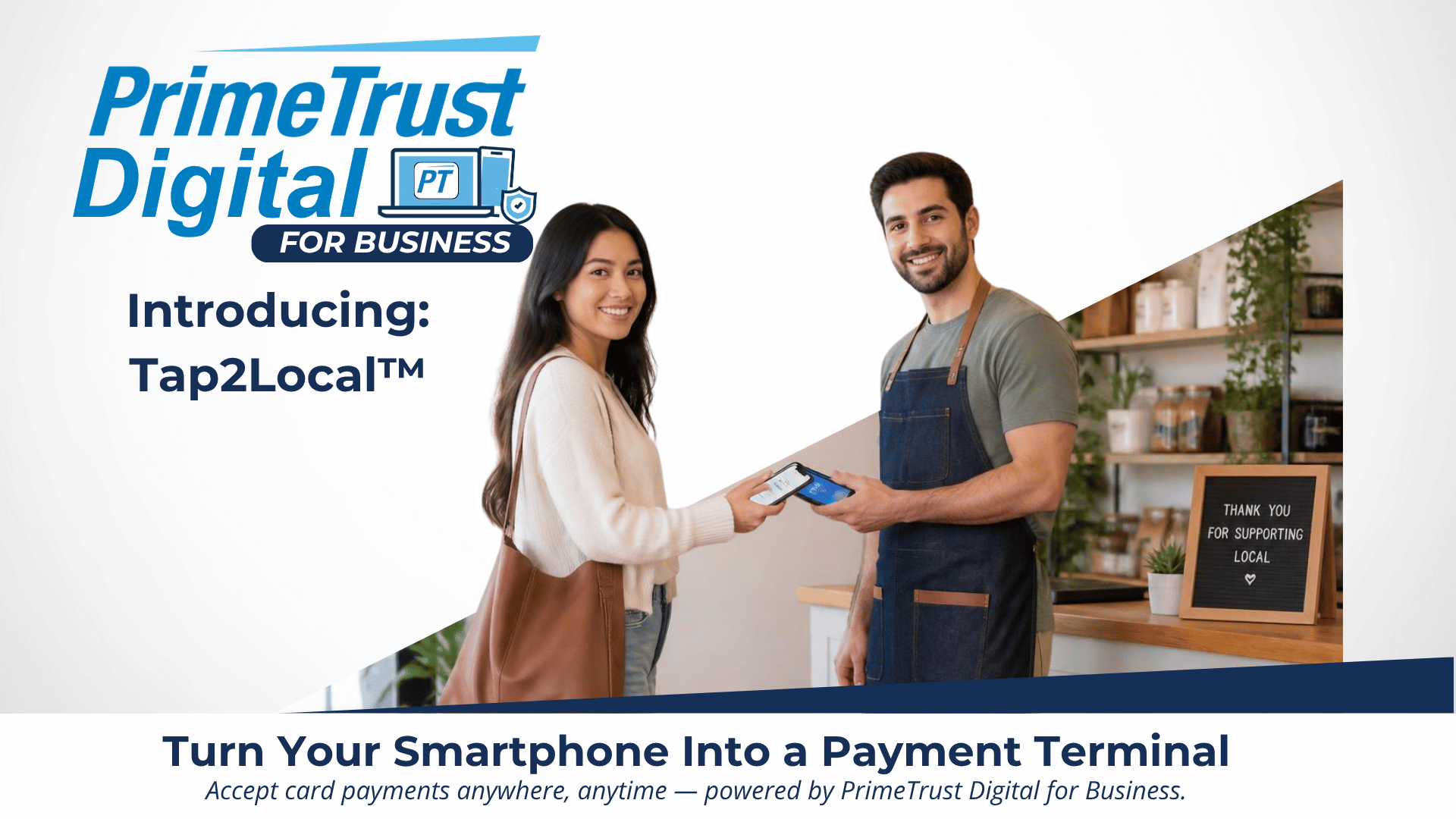
As a business member, you can now turn your smartphone into a high-powered payment terminal with our brand new Tap2Local service!
This feature allows you to accept secure, contactless payments directly on your mobile device—no extra hardware, dongles, or expensive card readers required. Whether you’re at a pop-up market, a client’s home, or on the retail floor, you can provide a seamless checkout experience that keeps your business moving as fast as your customers do.
Key Benefits for Business Members:
-
Total Mobility: Accept payments anywhere you have a cellular or Wi-Fi connection.
-
Reduced Overhead: Eliminate the cost and maintenance of traditional POS hardware.
-
Versatile Payments: Supports physical contactless cards and digital wallets like Apple Pay, Google Pay, and Samsung Pay.
-
Bank-Grade Security: Built on Jack Henry’s secure infrastructure to protect every transaction and customer detail.
By integrating directly with your business account, Tap2Local simplifies your bookkeeping and ensures your funds are right where they need to be. It’s the ultimate tool for staying agile in a mobile-first economy.
Logging in - PrimeTrust digital banking for business
The PrimeTrust Digital Experience
Enjoy the convenience of:
- Single sign-on for online and mobile banking
- Consistency across all devices
- Remote Deposit
- Logging in with two-factor authentication
- Adding notes, tags, and pictures to your transactions
Plus, check out what’s coming to our new mobile app
- Easier access to credit card, mortgage, and bill pay information
- Manage multiple account profiles
Will I need to download a new app?
- Yes. You will need to download our new app from the iTunes store or Google Play Store


How to access digital banking.
There are two access points:
- Visit www.primetrustcu.com and click "Login" at the top right.
- Download our NEW mobile app from Google Play or Apple Store (links above)
Note: You will not be able to access the website via old bookmarks or the previous mobile banking app.
Better security with (2FA) - two factor authentication
Two-Factor Authentication is a security measure that allows you to request a one-time access code to log in to digital banking. The code enhances the security by creating an added layer on top of your unique username and password. This security process helps to verify you and better protect your credentials and the accounts you can access.
Do I need to get a code every time I log in?
No. Check the “Don’t ask for codes again on this computer” box if you do not want to receive a confirmation code or phone call each time you log in. If you prefer to input a confirmation code with each use, you can leave the box unchecked or use the 2-Factor Authentication app to deliver the code
Note: If you ever want to remove a device and reset your security settings, you can change them in settings once logged in to digital banking.
Mobile Banking Apps
To download the free PrimeTrust Mobile Banking App for your smartphone or tablet, simply search for "PrimeTrust" or "PrimeTrust Financial" in the Play Store or App Store and follow the directions given.Can I still use the app if i don't use texting?
Two-Factor authentication uses a unique one-time access code to verify identity and log on to digital banking. If you are unable to receive text (SMS) messages, you can choose to receive your access code via a phone call.
- On the verification code screen click Try another way located beneath the Verify button
- Select Phone Call and click Next
- You will receive an automated phone call that will provide your access code (Have a pen and paper ready)
- Return to the verification code screen
- Enter your access code and click Verify
If you are still having trouble, contact the credit union to ensure we have the correct phone number on file.
I can't remember my username name or password
You can recover your account by going through the Forgot Password? steps.Are you receiving an error logging in?
- Feel free to contact us, as always. We love our members.
- type your error in our website search (top of screen).
- Visit the "Troubleshooting" section below.
*PrimeTrust does not charge a fee for Mobile Banking. Your wireless carrier may charge you for data usage and text message services. Check with your wireless carrier for details regarding your specific wireless plan and any data usage or text messaging charges that may apply.
what is positive pay?
(NEW FOR BUSINESS)
What is Positive Pay?
Positive Pay is a fraud-prevention service designed to safeguard your business against unauthorized ACH entries or check transactions and altered check fraud. This service significantly reduces the risk of check and ACH fraud, provides greater control and visibility over payments cleared, and helps you detect fraudulent activity early, potentially avoiding financial loss and business interruption.
By implementing ACH and Check Positive Pay, you can have peace of mind, knowing your transactions are monitored and protected against potential fraud. Stay tuned for our next email, where we will dive deeper into the workings of ACH Positive Pay and how it can benefit your business.

what are the different types of positive pay? how do they work?
(NEW FOR BUSINESS)
Check Positive Pay
Operates by verifying each check presented for payment against a list of checks issued by your company (a.k.a an issuance file). This issuance list or file includes essential details such as check number, account number, dollar amount, and payee and is also available for teller line validation of on-us checks presented to be cashed.
Recommended for all business and commercial clients

Payee Positive Pay
Inspects the check image presented and compare the payee name provided on your issuance file with the payee on the check image. Any discrepancy flags the check as potentially fraudulent, prompting alerts to be sent for further action. This information is also available for teller line validation of on-us checks presented to be cashed. This process significantly diminishes the risk of check fraud and losses that can almost never be collected.
How Does Payee Positive Pay Work?
- Submit Check Details: Provide details of the checks you issue, including payee name, check number, amount, and date issued by uploading a file or manually inputting the information.
- Automated Matching: As checks are presented for payment, each detail is verified against your submitted check issuance list.
- Alerts and Decisions: Receive prompt alerts for any discrepancies, allowing you to decide whether to pay or return the check.
Recommended for business and commercial members that want an added level of security on their account
Reverse Positive Pay
Presents a report of checks that are clearing the account to verify the check image against your records.
Recommended for business and commercial clients that issue a limited number of checks but are still looking for a tool to mitigate fraud
ACH Positive Pay
Allows you to set parameters to control which ACH debits and credits post to your accounts. Similar to its check counterpart, ACH Positive Pay flags transactions not meeting the established criteria, enabling you to review and decide on the legitimacy of these transactions.
How Does ACH Positive Pay Work?
- Set Controls: You specify the approved vendors and associated Company ID and options to set maximum dollar limits and frequencies a vendor can debit the specified account.
- Monitor Transactions: Each ACH debit against your account is matched against these controls.
- Decision Time: You receive alerts for transactions not meeting your specified criteria, and you decide whether to allow or reject these payments.
Recommended for all business and commercial clients receiving ACH debit and credit transactions and are interested in or require advanced fraud mitigation.

what are the benefits for my business?
(NEW FOR BUSINESS)
Benefits for Commercial Accounts
- Significantly reduces the risk of check and ACH fraud
- Provides greater control and visibility over payments cleared
- Allows clients to return transactions automatically within the required timeline
- Helps detect fraudulent activity early, potentially avoiding financial loss
- Prevents business disruptions due to fraud
Solutions That Match Your Needs
- Check Positive Pay is recommended for all business and commercial clients and offers a traditional Positive Pay solution for validation of check number and amount.
- Payee Positive Pay is recommended for business and commercial clients that want an added level of security by validating the payee in addition to the check number and amount. Given the increase in mail theft and check washing, financial institutions are encouraging Payee Positive Pay.
- Reverse Positive Pay is recommended for business and commercial clients that issue a limited number of checks but are still looking for a tool to mitigate fraud and eliminate uploading check issue files. This can also be a good interim solution for clients that have experienced fraud and are in the process of adding Payee Positive Pay.
- ACH Positive Pay is recommended for all business and commercial clients receiving ACH debit and credit transactions and are interested in or require advanced fraud mitigation.
what is user management?
(NEW FOR BUSINESS)
Managing your company’s finances just got easier. With PrimeTrust Digital for Business, you have the power to control who has access to your accounts, what they can do, and see every action they take. Our platform is designed to give you peace of mind and complete control over your business's financial operations.
Effortless User Management
You know that different employees need different levels of access. With PT Digital for Banking's User Management, you can give your team exactly what they need—and nothing more.
-
As an admin, you can easily add new users, edit their details, and assign roles to fit their responsibilities.
-
You have the power to manage permissions for a specific employee, allow access to certain accounts, and control their abilities on an account-by-account basis. It’s all about giving you the control to keep your business secure.
Complete Activity Tracking
Keep tabs on all business activity with our detailed financial record.
Gain a complete view of every single action taken by any user, giving you a transparent record of all activity.
Easily track and monitor all key business actions, including money movement, entitlement modifications, and user profile changes.
Use advanced filters to sort activity by a specific time frame, a business user's name, or the type of event for a truly customized view.
Export a detailed history report to a .csv file, which you can then save for your external records and compliance audits.
Permissions & Entitlements
Get granular control over your team's financial access.
-
Fine-tune each employee’s abilities to match their exact role and responsibilities.
-
Control which financial tools your team can use, including entitlements like ACH, transfers, and wires.
-
Customize permissions down to a specific account, so each person has the right level of access.
- Authorize specific activities to ensure users can only move funds or view information for the accounts you’ve expressly allowed.
what are some best practices I can follow to protect my business accounts?

- Use ACH and Check Positive Pay on all accounts.
- Send in your check issuance files in a timely manner for Check Positive Pay.
- Consider Dual control for all transaction management.
- Review all ACH and Check Positive Pay exceptions daily.
- Reconcile accounts daily.
- Use a P.O. Box or locked mailbox for receipt of all mail.
- Do not send disbursement checks in the USPS blue mailboxes or other unsecured drop boxes.
- Educate employees on cyber-attacks and business email compromise scams.
- Review insurance policies for cyber security and other loss protection.
- Limit processing, storing, and transmission of bank accounts and card numbers.
- Control access to accounts and information, and use dual approval for all disbursements.
- Use multi-factor authentication (MFA) for all money movement activities.
- Do not update vendor information for payment without an out-of-band verification using a known and validated source.
- Maintain secure computer access.
- Secure your network and online banking system and update passwords regularly.
- Maintain backups to the network and review backups to ensure correct.
Additionally, should fraud occur, we've outlined clear and effective steps to take immediately to mitigate damage and address any vulnerabilities.
- Keep the incident discreet in the event it was an employee committing internal fraud.
- Contact your Treasury Client Support to report fraud.
- Contact the insurance company.
- Review all accounts and activity to determine all transactions have been identified.
- Contact local authorities or the Federal Bureau of Investigation (FBI) or Secret Service.
- If check stock is stolen or lost, place stop payments on all checks within the affected check stock range.
- Contact your Treasury Client Support to enroll in ACH and Check Positive Pay with payee validation if not in place.
member support & chat

How do I send a message to a credit union representative?
Whatever device you are on, it's easy for you to start a secure conversation with the credit union:- Log in to digital banking via the Login button on the website or via the mobile app.
- From a desktop, click on the envelope icon in the upper right-hand corner of digital banking or select Conversation from the dashboard of mobile banking.
- Click Start a conversation or click the conversation icon on mobile.
- Type your message and click Send.
How do I block my debit card?
Blocking your debit card is easy in digital banking. It's just as easy to unblock it as well!- Log in
- Under the Card Management tile, click the toggle slider to turn the desired card off
- If you wish to turn the card back on, simply click the toggle next to the blocked card to turn it on
How do I re-order checks?
Checks can be re-ordered*.- Log in
- On the dashboard click on your checking account from the account list
- On the account details page, from the options section click on the Reorder checks link
*Limit of one (1) box per day.
How can I change my phone number, email address, or primary address?
You can update your phone number, email address, or primary address in digital banking.- Log In
- Click on the User Profile icon and click Settings
- Click Edit next to your phone, email, or address
- Verify your password
- Edit your contact information
- Click Save
How do I change my username or password?
You can change your username or password at any time in digital banking.To change username:
- Log in
- Select your username icon in the top right corner or menu in mobile banking
- Select Settings and then select Security option on the left side menu
- In the Username field select Edit
- Enter your current password when prompted
- Change your username and select Save
To change password:
- Log in
- Select your username icon in the top right corner or menu in mobile banking
- Select Settings and then select Security option on the left side menu
- In the Password field select Edit
- Enter your existing password, and then enter a new password
- Select Save
How do I rename or personalize an account name?
You can rename any account in digital banking.- Log in
- Select an account from the Accounts section
- Select Settings from the options menu
- Next to the account name, select Rename
- Type the new name, and then select Save
How do I change the order my accounts are displayed in digital banking?
You can rearrange the order your accounts display in digital banking to reflect the sequence you want.- Log In
- From the Accounts click on the three dots and click Organize Accounts in online or click the opposing arrows in mobile
- Drag and drop the accounts to rearrange the order
- Click Done
Mobile Alerts & E-statements
How do I delete an alert in digital banking?
Alerts can be deleted at any time in digital banking.- Log in
- Select the account you would like to edit up an alert for
- Click Alert preferences in the menu or Manage alerts in mobile
- Under Alerts
- Click Edit next the alert you would like to change
- Click the Trashcan icon or click Remove in mobile
How do I edit an existing alert in digital banking?
Alerts can be edited at any time in digital banking.- Log in
- Select the account you would like to edit an alert for
- Click Alert preferences in the menu or Manage alerts in mobile
- Under Alerts
- Click Edit next the alert you would like to change
- Change your criteria for the alert
- Click Save
How do I enroll in e-Statements?
To enroll in E-Statements, Click on any account to view the details of the account. In the list, choose Documents. In the first window, read through the content and click "I Agree".
How do I view my account statements and tax documents?
Account statements and tax documents can be downloaded from digital banking. These are only available for accounts already enrolled in E-Statements.
- Log In
- Click on any account listed
- Click on Documents from the Account Details page in the options menu
- Statements and Taxes will be listed for each year available
Troubleshooting & Errors
Why am I getting the digital banking error: "Your account needs attention"?
This error is present during the log in process and typically means that your account has been locked. This can happen for a variety of reasons but is easily resolved. Please contact us via phone or chat for assistance unlocking your account.
Why am I getting the digital banking error: "Please verify your information and try again"
This error is present during the log in process and typically means that your credentials didn't match our records. Try entering your credentials one more time. If the error persists, please contact us via phone or chat for further assistance.
Why am I getting the digital banking error: "Oops: The information you provided doesn't match what we have on file."?
This error is present during the log in process and typically means that your account information does not match our records. Please contact us via phone or chat to confirm we have the correct phone number and username on record.
I'm not able to log in to online banking when I click on the login button.
You need to clear your cache in your internet browser to remove all cookies. If you need further assistance, please contact us.
Why am I getting the digital banking error: "Incorrect phone number"?
This error is present during the enrollment process and means that the phone number you entered does not match the phone number we have on file. If you have an alternative phone number, you can try again. If you would like to update your phone number in our system or need other assistance, please contact us.
Why am I getting the digital banking error: "Does not meet username or password requirements"?
This error is present during the enrollment process or when updating credentials. Click on Show Rules below the username and password field to see the credential requirements.
Why am I getting the digital banking error: "It looks like you've already enrolled"?
This error is present during the log in process and typically means that our records show that you have previously created an account with us. If you forgot your username and password, on the log in page click Forgot? Follow the steps to recover your account.